Feed optimization is where most advertisers waste time because they don’t know what NOT to optimize.
You read a guide, apply every tip to 500 products, and watch nothing change. The real skill is knowing which 50 products actually matter. Time is your constraint, not knowledge.
(This article is part of our Google Shopping guide.)
Table of Contents
What is product feed optimization?
Product feed optimization is changing the data in your product feed to move products from buried to visible. Your feed is a spreadsheet: each row is a product, each column is an attribute. You change values. Google matches different queries. Your CTR moves. That’s it.

Why feed optimization works
One of our clients had 190K impressions, 412 clicks, position 34.6. They were visible but nobody clicked. We optimized their top 40 products: titles, images, product data. Thirty days later, CTR went from 0.2% to 0.8%. Same impressions. Four times more clicks.
If your ROAS is 2.0 and feed optimization moves it to 2.4, a $1,000/day spend becomes $2,400/day revenue instead of $2,000. That extra $400 a day is worth your time.
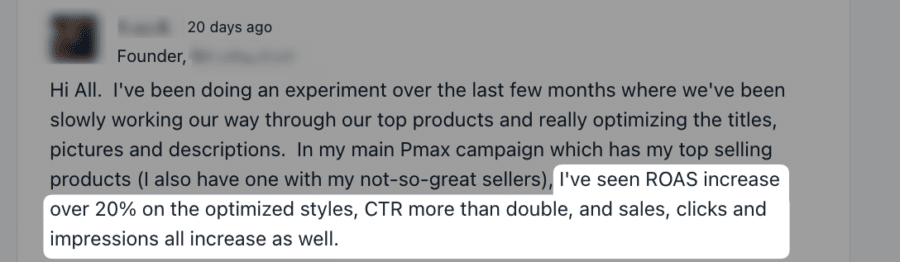
This is not just me making up numbers to fit the narrative for this article, it’s an actual result from one of our Lab members:
3 Levels of Product Feed Optimization
Feed work breaks into three levels. Do them in order:
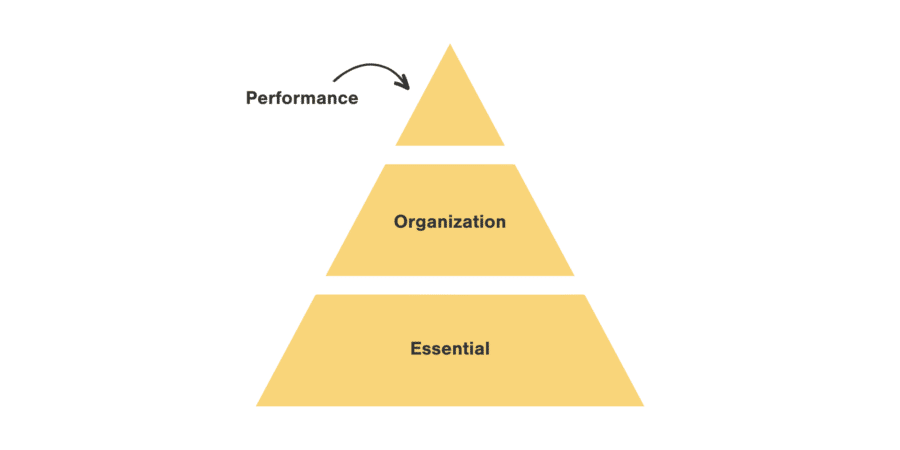
- Essential: Fix disapprovals and warnings so products show at all.
- Organizational: Add custom labels and product types to manage at scale.
- Performance: Optimize titles, images, pricing on your best products.
The 80/20 here: if time is short, skip Essential for now and start with Performance on your top 50 products. Optimize titles first. That alone often doubles your CTR.
Level 1: Essential attributes
This section is a brief reference. For detailed fixes, see our Google Merchant Center errors guide.
Go to Google Merchant Center and check the Diagnostics tab. Fix all red disapprovals first. Then sort warnings by % affected and fix the highest impact ones. Most warnings come from missing brand, GTIN, or identifier_exists values. Add GTIN if the product has one. If not, set identifier_exists to false. Don’t make up GTINs. For everything else, see our errors guide.
Also: turn on Automatic improvements in GMC settings to let Google adapt prices and availability when your feed doesn’t match your site. This reduces warnings fast.
Level 2: Organizational attributes
Once products show, organize them so you can actually manage campaigns.
Product type for organization
Product type lets you organize products inside Google Ads without relying on Google’s fixed categories. Use a hierarchy with > to separate levels. Example: Apparel > Shirts > Long Sleeve. Then you can create product groups in Shopping campaigns that match those splits.
Custom labels for flexibility
Custom labels let you tag products however you want. Common uses: price buckets (under $20, $20-99, $100+), margin levels, bestsellers, low inventory.
Here’s why this matters: Once you have custom_label_0 set to price buckets, you can pause all products under $20 in Performance Max with one click if you need to. Or bid higher on your best margin items.
No custom labels in your feed yet? Start with one: price buckets or margin. Once that’s live, add more as you need them.
Level 3: Performance optimization (where the money is)
This is where feed work actually moves metrics. The 80/20 applies here too: optimize your top 50 products. Stop trying to optimize 500.
Product titles are 80/20 of the 80/20
Optimized product titles move more CTR than any other feed change. Full stop.
Most titles are too generic. They’re missing brand, key attributes, or keywords your customers search for. A title like “shoes” loses to “Nike Air Max 90 Running Shoes Black Size 10”.
Use this formula as a starting point for your category:
- Apparel: BRAND PRODUCT COLOR SIZE
- Electronics: BRAND PRODUCT SPECS
- Hardware: BRAND PRODUCT SIZE QUANTITY
- Home goods: BRAND PRODUCT STYLE COLOR
After you nail the formula, add a keyword at the end if it helps. Example: “Felco 2 Secateurs | Felco Pruners” tells Google your product matches both query types.
Focus on your top 50 products by revenue. Rewrite those titles. You’ll see CTR move in days.
Images that convert
Product images have gotten easier to optimize thanks to AI tools. Before 2026, creating lifestyle images at scale used to be expensive and slow. Now tools like Nano Banana Pro can generate product images and lifestyle shots for dozens of products in hours, not weeks.
If your competitors show products on models or in use, you need the same. Use AI tools to create lifestyle variations. Swap in the best one as your primary image. Then add the lifestyle version using the lifestyle_image_link attribute.
Don’t have budget for new photos? Start with your top 3 products. One lifestyle image each. See if CTR improves. If it does, scale.
Descriptions (the invisible lever)
Google uses your product description to match queries, but customers rarely see it. The only place it shows is in free listings.
Don’t spend weeks rewriting descriptions. But here’s the lever: if you’re a new seller fighting established competitors for visibility, add competitor names to your description. Not in a spammy way, but naturally. “Works with Felco, Bahco, and Fiskars tools” tells Google your product competes in that space.
One client did this and their impressions spiked 40%. Everyone else uses descriptions the same way, so Google expects it.
Add product details sparingly
Google has dedicated fields for size, color, material, gender, age group. These help Google understand variations.
Only fill these in if you’re selling variations of the same product (multiple colors, sizes, etc.). If you have a single SKU, skip these.
Product type for search matching
Here’s something most guides miss: product type affects which queries your products match, not just campaign organization.
If your product_type is generic (“Posters”), Google matches fewer queries. If it’s specific (“Space Posters > Moon Posters > Apollo 11 Posters”), Google matches more. Make yours keyword-rich.
Performance Max attributes
If you run Performance Max campaigns, fill these:
- short_title: A punchy version of your main title, 50 chars max.
- lifestyle_image_link: An image of the product in use.
Google uses these in Display placements. Skip these if you only run Standard Shopping.
How to implement changes
You can make feed changes through:
- Your ecommerce platform (simplest for one-offs)
- Attribute rules in GMC (good for clear if/then logic)
- Supplemental sources in GMC (most flexible, uses Google Sheets)
- A feed management tool like Simprosys or Channable (if you run multiple channels)
The truth is that there is no single best way to make changes, it very much depends on what information you’re trying to change.
What’s still uncertain
One thing feeds don’t tell you: whether a 50% longer title hurts your CTR with fewer impressions or helps. The field limit is 150 chars but we don’t know if 140 is overkill. Test on a small subset first.
Also unresolved: Does AI-generated imagery perform as well as real lifestyle photos in the long run? Early data says yes, but we’re only a few months in. Watch this space.