If you’re a freelancer, agency, or consultant managing more than one client account, a Google Ads manager account isn’t a feature you evaluate. It’s just how you do the work. You log in once, see all your accounts, run scripts across them, and keep things organized. It’s table stakes for anyone handling multiple accounts.
The industry calls it a Manager account now (older docs call it MCC, My Client Center). This guide covers what it does, when you actually need one, how to set it up, and what workflows open up once you have it
What is a Google Ads manager account?
A Google Ads manager account is an umbrella account that sits above your individual Google Ads accounts. You link accounts to it and see them all in one dashboard instead of logging in and out repeatedly. You still manage each account separately. The manager account is purely a consolidation and control layer.
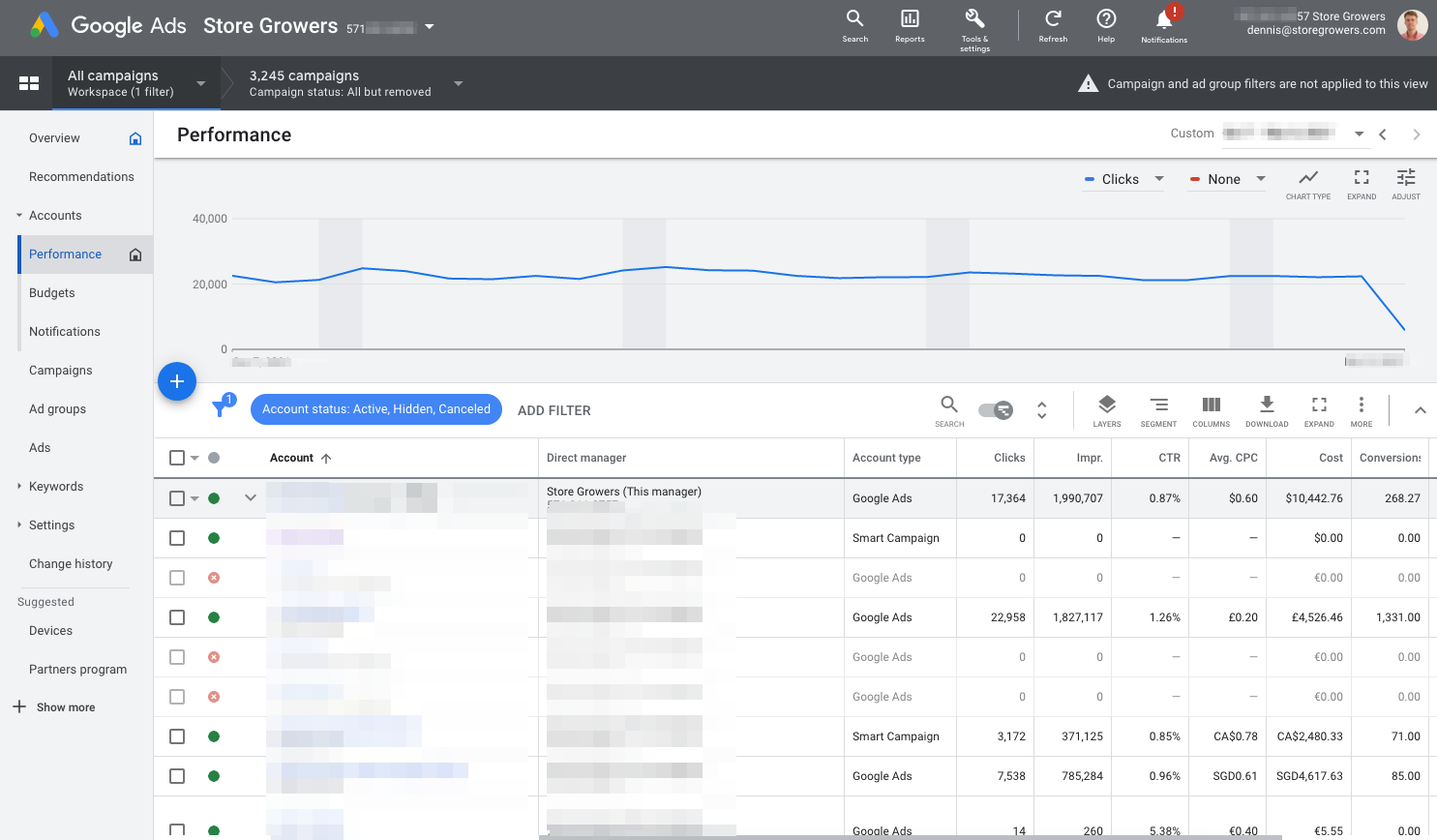
When you need a manager account
You need a manager account if you’re managing more than one Google Ads account. That’s it.
- Freelancers managing client accounts
- Agencies managing multiple client accounts
- Companies running multiple accounts for different brands, locations, or business units
- Anyone consolidating billing or sharing assets across accounts
If you’re running one account, you don’t need this.
What becomes possible with a manager account
The real power of a manager account isn’t in consolidation. It’s in the workflows you unlock.
Easy client onboarding and offboarding. When you bring on a new client, you send a linking request and they have to accept it. When you offboard a client, you unlink and remove access.
No need for juggling multiple email addresses for each client.
Scripts at the manager level.
A broken link checker script we run at the manager level scans all linked accounts without needing separate configuration in each one. The script finds broken links across all accounts and emails a single report instead of ten separate emails.
We also run a budget monitoring script at the MCC level that checks daily spend vs. target for some accounts. If any account is overpacing by more than a certain percentage, it sends an alert. Before we had this, we’d occasionally discover an account had blown through its monthly budget in a few days. You could do the same with competitor checkers or account audits.
Shared negative keyword lists.
Create a negative keyword list at the manager level and apply it to multiple accounts. If you manage accounts for five different companies, you might have a shared list of generic negative keywords that applies to all of them. A large enterprise might maintain currency-specific negative keywords to push to regional accounts.
The biggest mistake people make with shared lists: blocking too much. Each account has different products and different audiences. A negative keyword that makes sense for one client can kill traffic for another. Keep lists account-specific where it matters, and make sure you can remove a shared list from an account entirely if it’s causing problems.
Shared placement exclusions.
If you have separate accounts for Search and Display, you can exclude the same placements across both without re-entering them.
Shared automated rules.
Set up a rule like “pause ads below a 3% CTR” and apply it across multiple accounts instead of configuring it in each one. Not that useful anymore.
Shared audiences for remarketing.
Create a remarketing audience at the manager level and reuse it across accounts. This only makes sense if the audiences are truly shared (like a website that serves multiple brands). For agencies, this gets complicated because audience data is tied to privacy permissions from each sub-account. Everyone has to agree to it.
Shared conversion actions and cross-account reporting.
Set up a conversion action at the manager level and use it across sub-accounts. This gives you a unified view of conversions across your entire account structure. You can build attribution reports that span multiple accounts.
Again, this is something you will very rarely need, unless you’re an organization that shares conversion actions but needs dedicated accounts per country.
Permission management.
You can assign different permission levels to different users. One team member might manage Client A, another manages Clients B and C, and a third has read-only access to all accounts.
Account limits at the manager level
Google limits how many accounts you can link to a single manager account based on your spending. If you hit the limit, you need to create a second manager account and link it to the first one (creating a hierarchy). This becomes necessary when working with a team of freelancers or running an agency with multiple managers who each need their own workspace.
| Monthly spending (past 12 months) | Active non-manager accounts | Total non-manager accounts |
| Under $10,000 | 50 | 5,000 |
| $10,000 to $500,000 | 2,500 | 85,000 |
| Over $500,000 | N/A | 85,000 |
“Active” means accounts with ongoing spend. “Total” includes paused and inactive accounts.
Security considerations for manager accounts
A manager account is a single point of failure. If someone compromises your manager account login, they have access to all linked accounts.
Two-factor authentication is mandatory for any manager account. If you haven’t enabled it, do it now. Use an authenticator app, not SMS when possible.
Audit your user permissions regularly. If you’re an agency, remove access when team members leave or when you stop working with a client. A freelancer should clean out old client access quarterly. The fewer active permissions on your manager account, the smaller your attack surface. Phishing scams targeting MCC account holders, agency people, and Google Ads experts have increased significantly. The more accounts under your MCC, the more damage a compromised login can do.
Use read-only access where appropriate. Not everyone who needs to see account data needs full admin access. Give read-only access to clients, stakeholders, and team members who don’t need to make changes. It reduces risk without reducing visibility.
Keep your recovery email current. If someone locks you out, your recovery email is how you prove ownership. Check it every few months to make sure you can still access it.
Consider using a dedicated Google account for the manager account. Don’t use your personal Gmail. Use a company domain email if you have one, or create a dedicated Google account just for management. This makes it harder for personal account compromises to spill into your client accounts.
Shared credentials are a disaster. Never share manager account login details. If multiple people need access, use Google’s permission system. If someone quits and you’re tempted to just give someone else the password instead of removing their access properly, don’t. That’s how accounts get left in limbo.
How to create a manager account
Go to the manager account creation page and click “Create a manager account.”
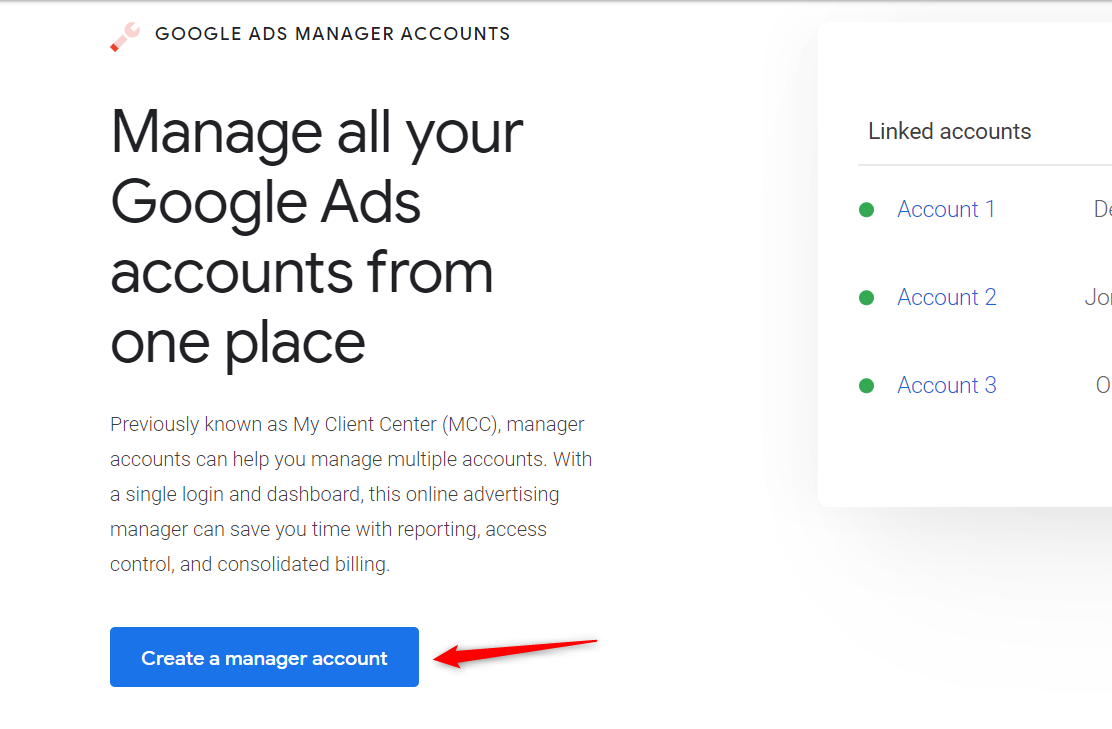
You’ll provide:
- The email you want to use for the account (if you already have a Google Ads account on that email, create a new Gmail account first)
- An account display name
- Whether you’re managing other people’s accounts or your own accounts
- Your billing country and time zone
- Your billing currency
That’s it. Click Submit and you’re done.
Your manager account ID is a 10-digit number at the top right of the screen next to your profile.
How to link accounts to a manager account
In the Accounts overview of you manager account, click the blue button to add a new account.

Select “Link existing account” and enter the customer IDs of the accounts you want to link (they’re 10-digit numbers from each account’s profile).

The account owner will receive a linking request. They have to accept it. You can’t force a link.
If you own all the accounts being linked, accept the requests from your Google Ads account. If you’re an agency linking client accounts, the clients have to accept your requests.
Unlinking accounts and removing access
To unlink an account from your manager account:
Go to Settings > Sub-account settings, select the account, click the Edit dropdown, and choose Unlink. That account is now independent again.
To unlink a manager account from your Google Ads account (as a sub-account owner):
Go to your Google Ads account, click the Tools icon (wrench), open Setup, then Access and Security > Managers. Find the manager account and click “Remove Access.”
Best practice: If you’re a freelancer or agency, periodically unlink client accounts you no longer work with. This reduces your manager account’s complexity and lowers security risk if it ever gets compromised. If a client fires you and you still have manager access, that’s a security problem waiting to happen.
Is a manager account worth the overhead?
If you manage multiple accounts, yes. You save time every day by not logging in and out. Scripts and shared rules eliminate repetitive configuration across accounts. Unified reporting beats checking ten accounts separately.
If you manage a single account, no. Don’t add complexity you don’t need.
For agencies, a manager account is table stakes. For freelancers managing a handful of client accounts, it depends. Three clients? Set it up. One client? Not yet.
The tricky part no one talks about: once you have a manager account, you have to maintain it. Permission creep happens. Old client access lingers. Your manager account security becomes critical. Do it right or don’t do it at all.