You’re paying $1.20 per click for “charger” because you sell phone chargers. But half those clicks are from people looking for Dodge Chargers and battery chargers for power tools.
That’s money leaving your account for visitors who will never buy from you. And it’s one of the most common (and most fixable) problems in Google Ads.
Negative keywords stop your ads from showing for searches that aren’t relevant to your store. They save you money, improve your click-through rates, and let you focus your budget on searches that actually lead to sales.
In this guide, you’ll learn how to find the right negative keywords for your ecommerce store, how to organize them into lists, and how to maintain them over time so your campaigns stay profitable.
Table of Contents
What are negative keywords?
Negative keywords prevent your ads from showing up for specific search queries.
Here’s a quick example.
Your store sells furniture, and you bid on the keyword “console”. While some of your searchers’ queries are related to table consoles, you see that your ads have shown for terms like “PlayStation 5 console” or “Xbox Series X console”.
As you don’t sell such products, showing your ad for these queries drains your budget.
So, to fix this problem, you add “playstation” and “xbox” as negative keywords.
These two negative keywords will stop Google from showing your furniture ads when people search for any video game consoles, now and in the future.
The benefits of using negative keywords
The main benefit of negative keywords is that they save you money. But there are a few additional benefits:
- Increase click-through rate (CTR): show for more relevant search queries
- Improve quality score: better CTR leads to a higher quality score which leads to a lower CPC
- Increase conversion rate: get higher quality visitors to your website
From our experience: most ecommerce stores we work with see an immediate 10-15% improvement in CTR after their first round of negative keyword cleanup. That higher CTR feeds into quality score, which lowers your CPC. It’s a compounding effect that makes your entire account more efficient.
How to find your negative keywords
Finding negative keywords is a lot like keyword research. You’ll start broad, collect candidates from multiple sources, then sort and evaluate them.
Search terms report
If you’re running Google Ads campaigns (Google Shopping or Search), the Search Terms Report is your most valuable source for negative keywords. It shows you the actual search queries people typed before clicking your ad.
To find it, go to your campaign, click Keywords in the left menu, then select Search terms at the top.
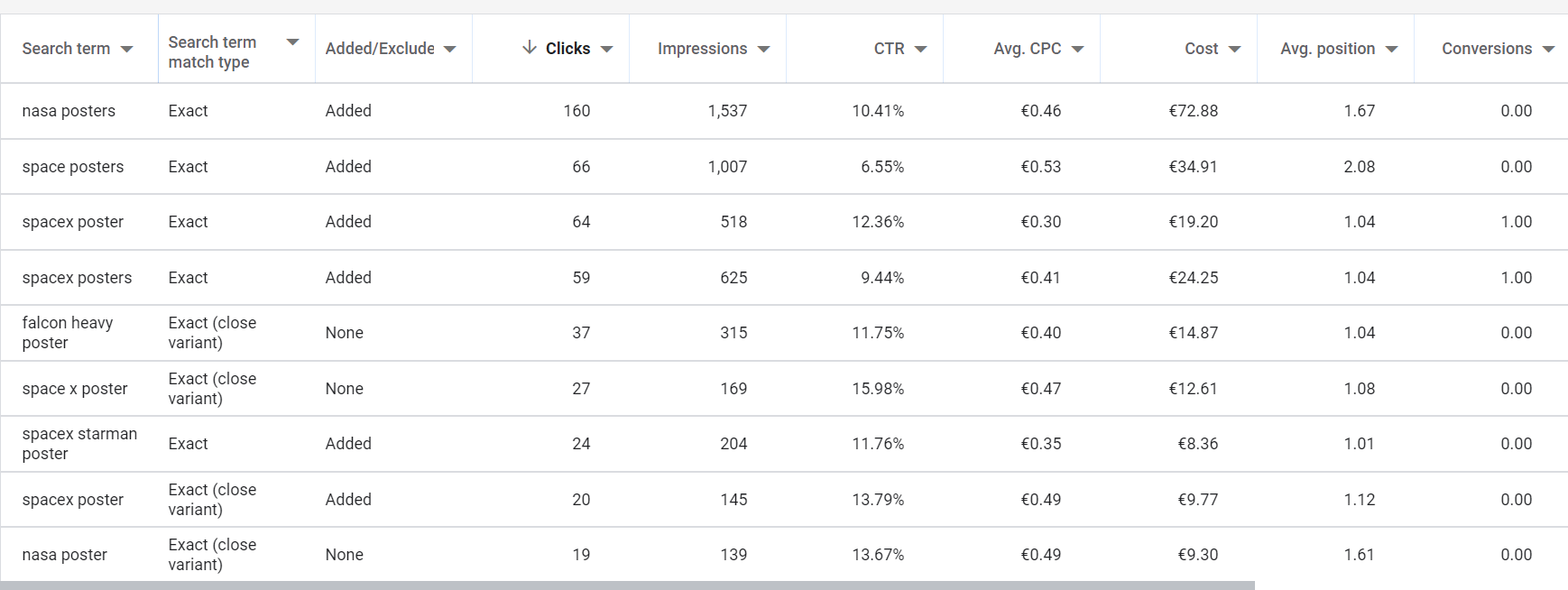
I usually sort this report by Clicks (highest first). Then I scroll through and look for queries that stand out: clicks that never convert.
Pro tip: add the “Keyword” column to this report. That shows you which keyword triggered each search term, which makes it much easier to figure out why you’re showing up for something unexpected.
Google Keyword Planner
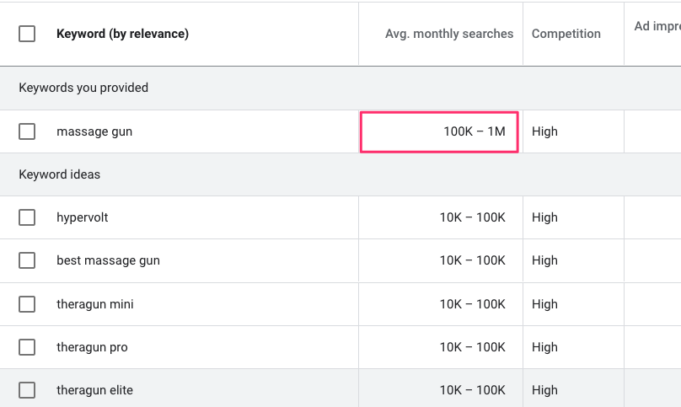
The Google Keyword Planner is a great tool to discover negative matches, especially when you’re setting up a new campaign and don’t have search terms data yet.
Google search
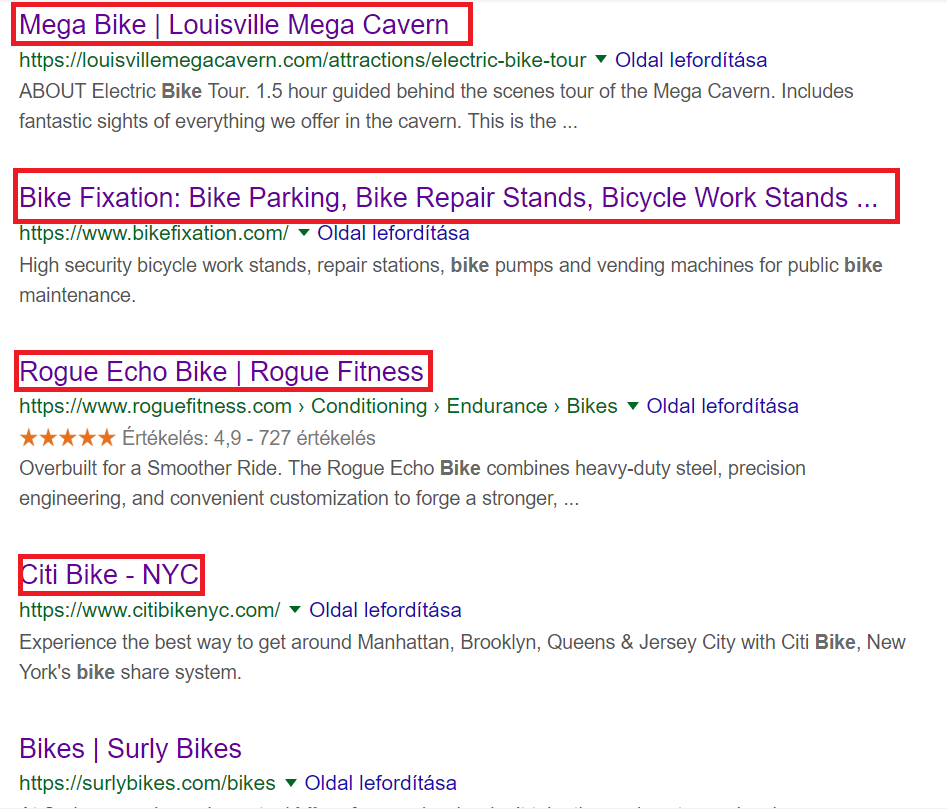
This might be the simplest method of all. Do a quick Google search for your main keywords and look at what comes up.
Other keyword research tools
If you have access to a tool like Semrush or Ahrefs, use their keyword explorer to discover related terms you might not have thought of.
You can also use Google Search Console to find organic queries driving traffic to your site.
Think like your customer (the ecommerce shortcut)
For ecommerce stores, there are predictable categories of searches you’ll want to exclude right away:
- Products you don’t sell. If you sell gold jewelry but not silver, add “silver” from day one.
- Brands you don’t carry. If competitors sell Nike but you don’t, those clicks are wasted.
- DIY and informational intent. Searches like “how to make” or “DIY” rarely lead to purchases.
- Job seekers. “Warehouse jobs,” “careers,” and “salary” searches are surprisingly common.
- Wholesale and B2B terms. Unless you sell wholesale, exclude “bulk pricing,” “wholesale,” and “distributor.”
Building these lists proactively saves you from paying for those first clicks while you wait for search terms data to come in.
Evaluating “bad keywords”
By now your list should be pretty filled with plenty of potential negative keywords, time to evaluate them!
All the keywords in your list can be reduced to 4 groups of negative keywords. I usually will go through my list of keywords and create a column for each group, that will make the work in what follows easier.
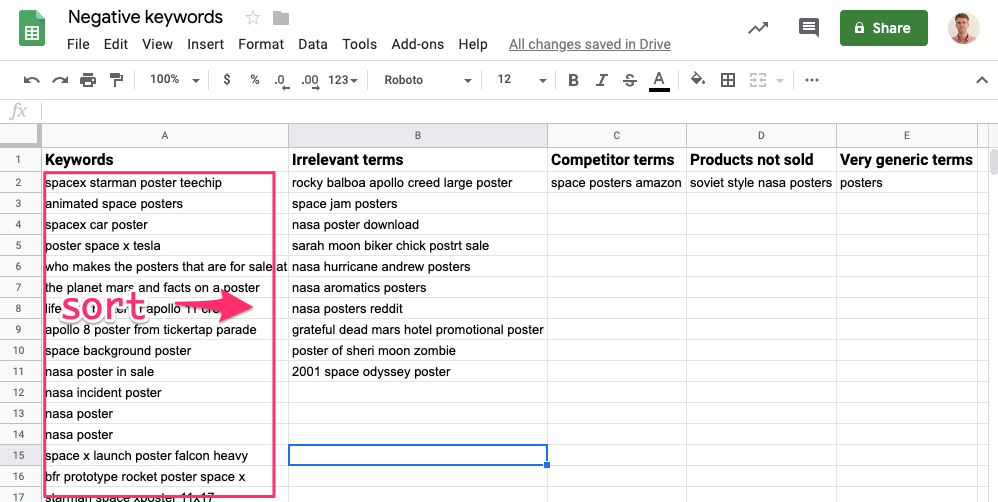
Irrelevant terms
These are the easiest to spot and the most important to exclude.
Examples: You sell phone chargers, and the search term is “dodge charger.” You sell robot lawn mowers and somebody is searching for “robot lawn mower diy.”
Competitor terms
While it is tempting to show ads for competitor queries, they usually aren’t very effective. Especially if you have a new or lesser-known store.
From our experience: keep competitor brand terms in a separate negative keyword list rather than permanently excluding them. As your store grows, it might make sense to target some competitor searches. Having them in a dedicated list means you can easily remove the block when you’re ready to test it.
Products not sold
Searches for products you don’t carry. Most people searching for a specific brand have already made up their minds. CTRs and quality scores won’t be stellar if you’re not using the search term in your ad.
Knowing that these search queries are happening can be a type of market research. I have clients who use these reports to identify trending brands or new products to stock.
Very generic terms
This fourth group is the hardest to evaluate. These keywords bring in a ton of traffic but come with high costs, low CTR, and low conversion rates.
Be careful not to over-exclude. Some generic searches don’t lead to sales directly but introduce new customers to your store who convert later. Adding too many negative keywords can starve your campaigns of the volume they need to find buyers.
When in doubt, keep generic terms in a separate negative keyword list so you can easily turn them back on.
The Grey Zone Search Query Checklist
- Does this search query have a low commercial intent?
- Does this search query have a CTR below average?
- Does this search query have a conversion rate below average?
- Does this search query have a cost per conversion above average?
If you answered yes to any of the above, consider adding that search term as a negative keyword.
How to add negative keywords to your campaigns
Go to your campaign, click Keywords in the left menu, then select Negative search keywords. Click the blue “+” button to add new negatives.
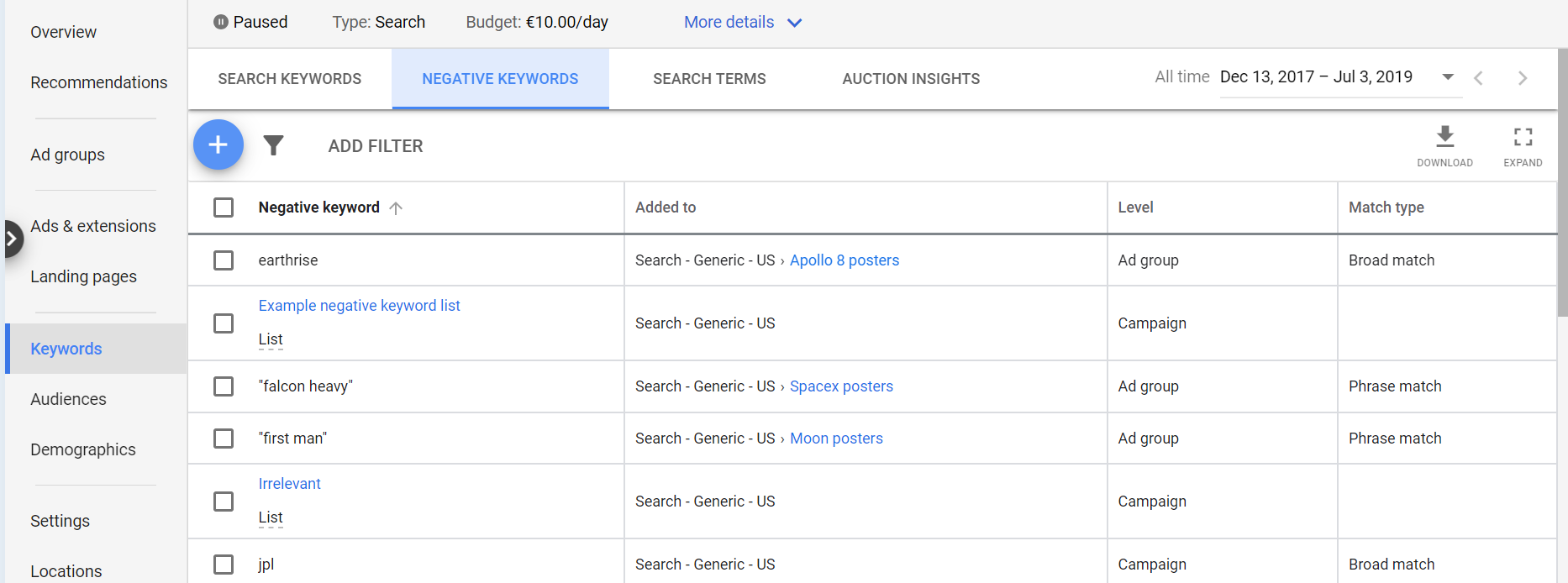
Campaign level vs. ad group level: campaign level negative keywords block searches across the entire campaign. Ad group level negatives only block searches in that specific ad group.
My iron rule: I only pay once for a bad search term. When I find an irrelevant query in one campaign, I add it to a negative keyword list that’s shared across all campaigns. That way it’s blocked everywhere, immediately. Too many advertisers add a negative to one campaign and then wonder why the same query pops up in another campaign next week.
Negative keyword match types
Like with regular keyword match types, you can add modifiers to control how strictly Google interprets your negatives.
For a detailed breakdown with examples, see our negative keyword match types guide.
Negative broad match
Negative broad match
The most restrictive type. If you add running shoes as broad match, Google blocks “running shoes,” “shoes running,” and “blue running shoes.” But “running” alone or “shoes” alone will still show.
Important: does not include close variants. You need to add singular and plural forms separately.
Negative phrase match
Negative phrase match
Blocks any query containing your keyword in the exact word order. Add “running shoes” and it blocks “leather running shoes” but NOT “shoes running.”Phrase match is my go-to for most negative keywords. It gives you a good balance between control and flexibility. You know exactly what you’re excluding. Even for single-word negatives, I add them as phrase match because it keeps things predictable.
Negative exact match
Negative exact match
Only blocks the exact phrase. Add [running shoes] and it only blocks that exact term. “Blue running shoes” will still show.
Useful for generic single terms where you want to block one specific query without affecting longer variations.
Example: Adding your negative keywords with match types
Key principle: shorten your negatives to exclude the maximum number of irrelevant searches.
I could add “rocky balboa apollo creed large poster” as a negative keyword. Instead, I add “rocky balboa” as a phrase match. That blocks all searches containing “rocky balboa,” including ones I haven’t seen yet.
Level up with negative keyword lists
Adding negative keywords to individual campaigns works fine when you have one or two campaigns. But as your account grows, it gets hard to manage.
Negative keyword lists solve this. They let you share negative keywords across campaigns from a single place.
How to create negative keyword lists
Click the Tools icon in the top navigation of Google Ads, then select Exclusion lists from the Shared library section.

Which negative keyword lists to create
- Irrelevant searches: completely unrelated queries (DIY, jobs, free, tutorials). Apply to all campaigns.
- Competitors: major competitor store names. Keep separate so you can easily remove them when ready to test competitor targeting.
- Brands not sold: product brands you don’t carry. Update when your catalog changes.
- Generics: very broad, high-volume terms that don’t convert profitably. Keep separate because you might want to reactivate them.
- Your own brand: all variations of your store brand name. Apply to generic campaigns so branded searches go to your branded campaign.
- Product names: all specific product names. Useful for routing traffic in tiered Shopping campaign structures.
Staying organized matters more than you think. I’ve audited hundreds of Google Ads accounts and messy negative keyword lists are one of the most common problems. The worst cases are stores that accidentally blocked their own best-selling brand because someone added it to the wrong list three years ago.
Adding negative keywords from the Search Terms Report
Day to day, you’ll be adding negatives directly from the search terms report. Select the keywords to exclude, then click “Add as negative keyword” in the top bar.
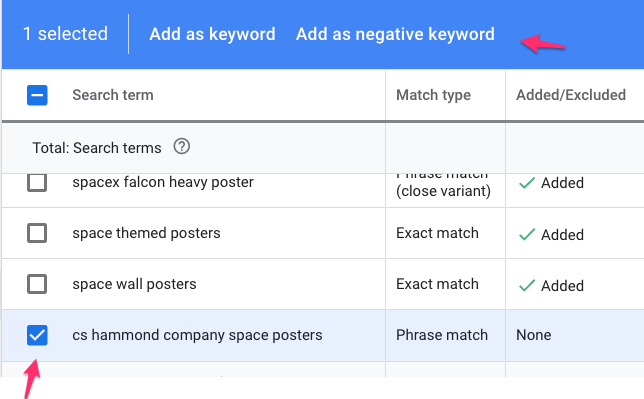
Before you hit Save, review the match type. By default, Google adds new negatives as exact match. In most cases, you’ll want to change it to phrase match so you also catch future variations.
Negative keywords in Performance Max
Google expanded pMax negative keyword support significantly in 2025. You can now add up to 10,000 negative keywords per Performance Max campaign and use shared negative keyword lists.
To add negative keywords to Performance Max, go to your pMax campaign, click Keywords in the left menu, then Negative search keywords. The process is the same as for Search or Shopping campaigns.
For ecommerce stores, this matters a lot. Performance Max covers Search, Shopping, Display, YouTube, and Discover placements. Without negative keywords, pMax will happily spend your budget on searches that drive clicks but not sales.
Start by applying your main negative keyword lists (irrelevant searches, competitors, brands not sold) to your pMax campaigns. Then review the search terms insights report regularly to catch new irrelevant queries.
Maintaining your negative keywords over time
Setting up negative keywords isn’t a one-time task. Here’s the maintenance routine I follow:
- Weekly: check the search terms report for each active campaign. Sort by impressions, look for anything irrelevant. Takes 10-15 minutes.
- Monthly: review your negative keyword lists. Make sure they still make sense. If you’ve added new products or brands, check that you haven’t accidentally blocked searches for them.
- Quarterly: do a full audit. Export all your negative keywords and review them against your current product catalog.
The real-world version: in the first few weeks of a new campaign, I check search terms every other day. There’s always a flood of irrelevant queries at the start. After a month or two, weekly is plenty. The goal is to reach a point where you only see one or two new negatives per week. That means your lists are working.
Your next step
Negative keywords are one of the few Google Ads tools where the effort directly matches the reward. Every irrelevant click you prevent is money you can spend on a click that might actually lead to a sale.
If you haven’t touched your negative keywords in a while, start with the search terms report. Sort by impressions, scroll through the list, and add anything that clearly isn’t relevant to your store.
If you’re starting fresh, build your initial lists using the four categories above (irrelevant, competitors, brands not sold, generics), apply them to all your campaigns, and then refine from there as data comes in.